AI reads. Official data decides.
Vetted uses AI only for the messy parts: reading listings, photos and labels. Whether something is recalled comes from government data and fixed rules, and every verdict shows its source.
- 1 · AI
Read the listing
Title, description and photos become clean fields: category, brand, model, references, barcode, batch, production date and any label text.
- 2 · Data
Find candidate recalls
A barcode is matched first. Otherwise Vetted searches by brand, then by model, across the official recall lists, and keeps the five closest.
- 3 · AI
Compare photos
Listing photos against the official recall photos: same product, different, or unsure, with reasons.
- 4 · Rules
Decide the verdict
Model and date or batch match: recalled. Model matches, date unknown: check the label. Otherwise: no recall found.
Where the data comes from
Loading the sources…
What Vetted won't do
- Say an item is safe. “No recall found” only means no official recall matches.
- Guess a production date. If it isn't known, Vetted asks for the label.
- Collect listings in bulk. The extension only reads the page you're looking at.
- Replace the official notice. Every verdict links to it.
Add Vetted to Chrome in about a minute
The extension shows the same check next to the Leboncoin or Vinted listing you're viewing. It isn't in the Chrome Web Store yet, so you add it yourself: three steps, once. It works in Chrome on a computer.
Unzip the download
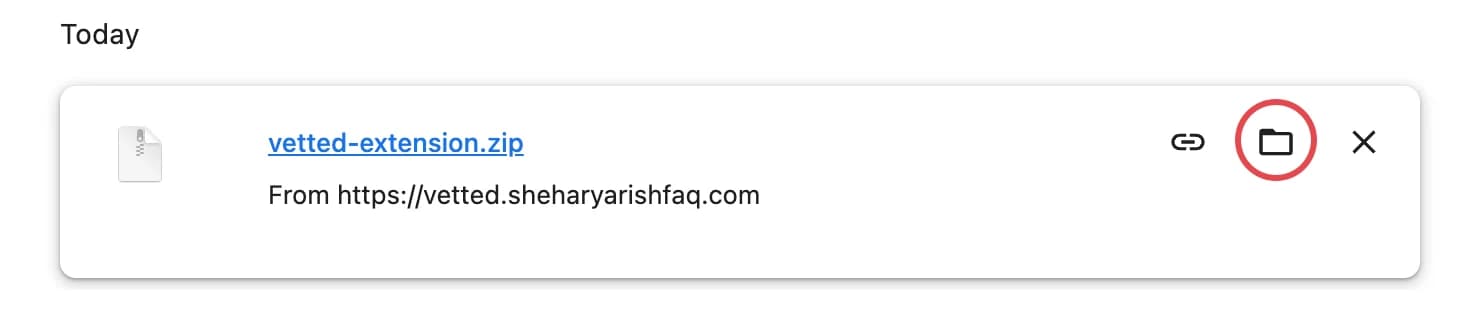
Chrome saves vetted-extension.zip in your Downloads folder. Open the folder (the circled icon in Chrome's downloads does it), then double-click the zip. On Windows, right-click it and choose Extract All.
You get a folder called vetted-extension. Keep it: Chrome runs Vetted from this folder.
Turn on Developer mode
Open a new tab, paste chrome://extensions into the address bar and press Enter. Then switch on Developer mode, top right.
Developer mode only lets Chrome load an extension from a folder. Nothing else changes.

Click Load unpacked and pick the folder
Click Load unpacked, top left, and select the vetted-extension folder (the folder, not the zip).
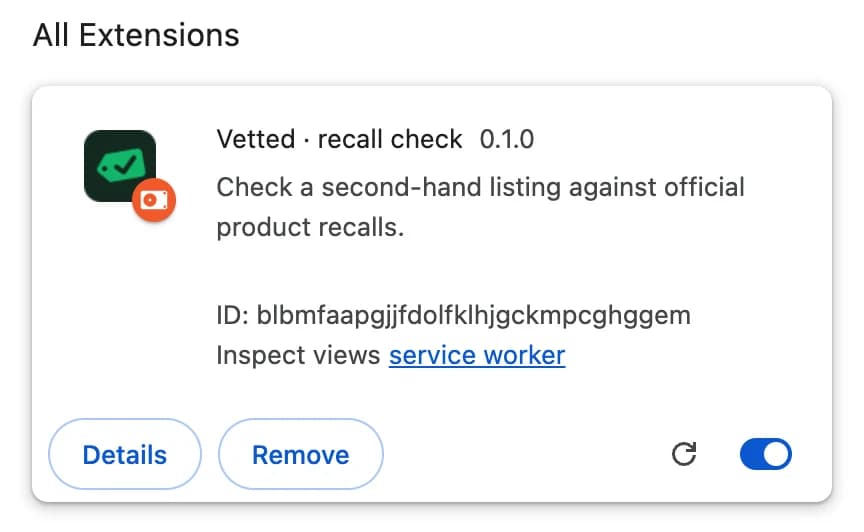
Vetted · recall check 0.1.0 appears in your extensions. That's it.

Now open any listing on Leboncoin or Vinted. The Vetted panel appears on its own. To keep Vetted in reach, click the puzzle-piece icon in Chrome's toolbar and pin it.
To update later, download the new zip, replace the vetted-extension folder, and click the reload arrow on the Vetted card in chrome://extensions.
Every answer tells you what to do next.
Recalled
This exact product is on an official danger list. Don't buy it as it is. The notice says what the owner should do.
Check the label
Only some units of this model are affected, for example ones made in certain months. Ask the seller for a photo of the label. Vetted writes the message for you, in French.
No recall found
Nothing in the official lists matches. Vetted shows what it searched and anything that came close. Still check the item's condition, as you normally would.